Configuring Zoom Provider Settings
Once you have created the new Zoom provider, you must configure the following:
| ■ | Webhook to trigger an email to the customer CRM each time a new customer lead is generated. |
| ■ | Tags and Connectivity settings. |
| ■ | Region settings for authentication and trunk mapping. |
| ➢ | To configure provider settings: |
| 1. | In the Navigation pane, choose Settings. |
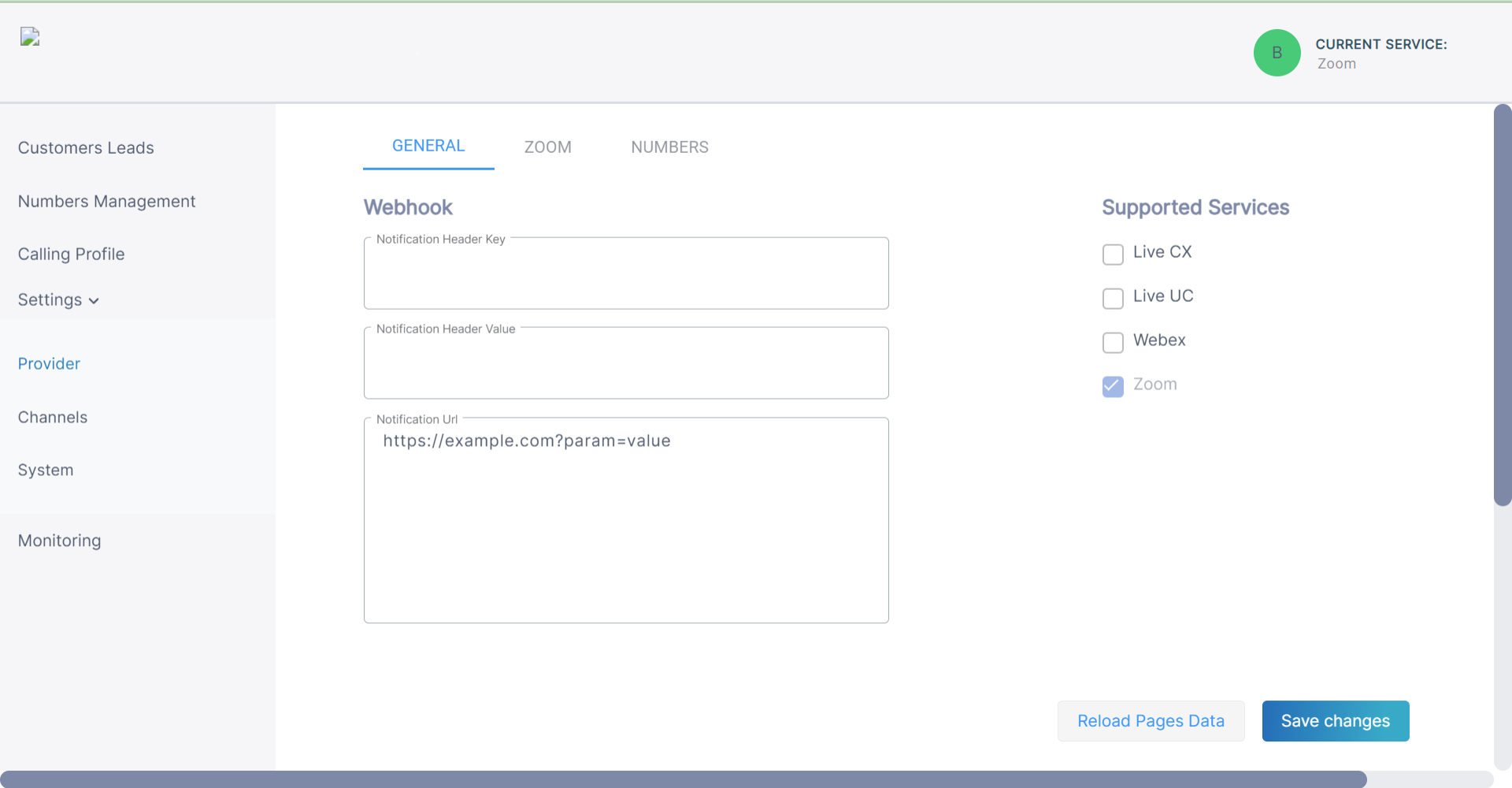
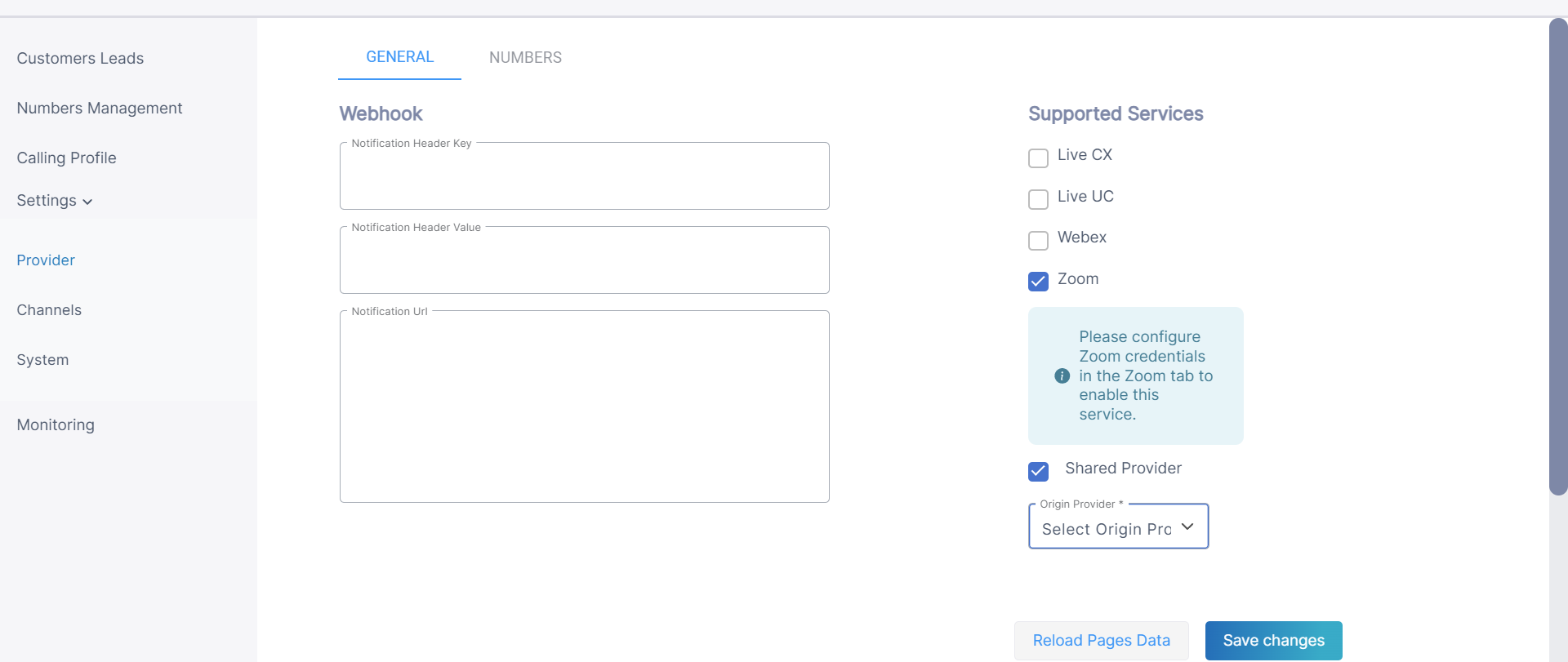
| 2. | Configure parameters according to the table below and then click Save changes. |
|
Parameter |
Description |
||||||||||||
|---|---|---|---|---|---|---|---|---|---|---|---|---|---|
|
Notification Header Key |
Header authentication key (header key: runkey) to connect to the destination address. |
||||||||||||
|
Notification Header Value |
The passkey in the Header Value. |
||||||||||||
|
Show Dialplan Check box |
Shows or hides the Use SBC Dialplan check box in the Upload Number dialog box. |
||||||||||||
|
Notification URL |
The destination URL for the HTTP POST. |
||||||||||||
|
Reload Pages Data button |
Click to refresh the page. |
||||||||||||
|
Supported Services |
|
| 3. | Click the Zoom tab and configure parameters according to the table below and then click Save changes. |
|
Parameter |
Description |
|||||||||
|---|---|---|---|---|---|---|---|---|---|---|
| Tag Type |
From the Use Tag drop-down, choose one of the following:
When end customers onboard the Zoom Provider Exchange service, they are prompted with the appropriate Tag dialog according to this configuration. |
|||||||||
| Connectivity Type |
From the Connectivity Type drop-down, choose one of the following:
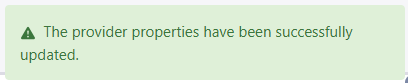
After applying confirmation, the following confirmation message is displayed:
|
|||||||||
|
Zoom Account Information |
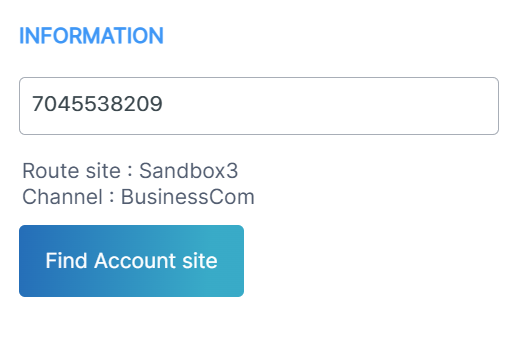
Enter a Zoom account number to search and then click Find Account site. The route and channel associated with the Zoom account are displayed.
|
|||||||||
|
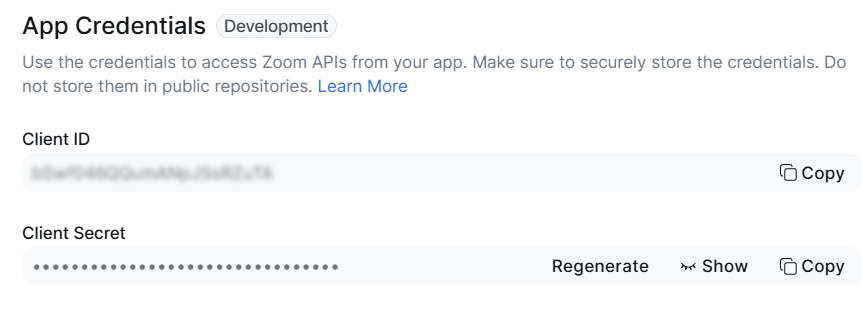
Credentials of the Service Provider App installed on the Zoom Marketplace used for customer and number management. These credentials are configured per region.
|
||||||||||
|
Client ID |
Client ID of the Service Provider App |
|||||||||
|
Client Secret |
Client Secret of the Service Provider App |
|||||||||
|
Carrier Code |
Service Provider Carrier Code according to AudioCodes validated list. |
|||||||||
|
|
|
|||||||||
|
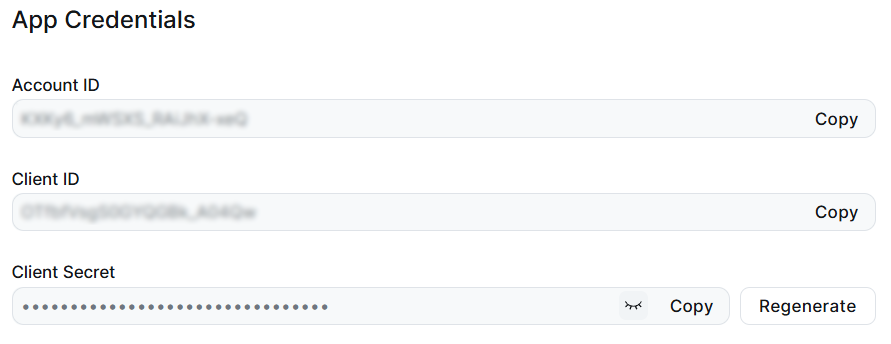
Credentials of the Access Token App registration is used by Live Platform for retrieving data on assigned users for metering. These credentials are configured per region.
|
||||||||||
|
S2SOAuthAccountID |
Account ID configured in the Access Token app shown above. |
|||||||||
|
S2SOAuthClientID |
Client ID configured in the Access Token app shown above. |
|||||||||
|
S2SOAuthSecret |
Client Secret configured in the Access Token app shown above. |
|||||||||
|
Zoom Trunks Map |
Region and Trunk Name Mapping . |
|||||||||
| 4. | Click the Numbers tab. |
| 5. | Enter the Default CAC value for the Number type 'User' and click Save Changes. Each number uploaded to Live Platform with Number type 'User' inherits this value (read-only). |